Apple Logic Pro Audio Units & macOS Standalone Mixing Guide
The Official TrueHear Studio Suite User Manual.
Step-by-step Logic Pro session routing, exact DSP parameter references, annotated Retina UI walkthroughs, and real-world mixing recipes for producers and musicians whose ears have lived a very loud, very fun life.
Dedication
“For everyone who stood too close to the amps in their twenties—and still makes great music today. The complete Logic Pro mixing solution for passionate musicians who just can’t hear the highs quite like they used to.”
Chapter 1 • Philosophy & Psychoacoustics
Welcome to the “I Stood Next to a China Cymbal in 1998” Club
Let’s be honest about how we got here. Nobody develops a 35 dB notch at 4,000 Hz from knitting sweaters or birdwatching. You earned your audiogram the honorable way: standing stage-left three feet from a drummer’s Zildjian Oriental China trash cymbal in a concrete basement club in 2002, leaning your left ear into a dimed 100-watt Marshall JCM800 to check if a tube was microphonic, or spending eight hours looping an 808 kick and snare on studio headphones at 94 dB SPL.
Somewhere along the way, six real-world studio mixing traps crept into your workflow—and standard FFT spectrum analyzers (which only show raw decibels, not how your cochlea perceives them) completely fail to protect you from any of them:
1. The Over-Compensation Trap3–6 kHz Notch / HF Loss
Because your ears are down 20–35 dB at 4 kHz or rolling off above 8 kHz, a balanced vocal or snare sounds dark and polite to you. You reach for a high-mid bell or 10 kHz shelf until it sounds “exciting” in the room—then play the bounce in your car the next morning and the sibilance is sharp enough to etch glass while neighborhood dogs two zip codes away howl in self-defense.
✓ Solved By:TrueHear EarProfile & Guard shades your blind-spot zones on the spectrum, flags harsh over-boosts inside your dip, and lets you Preview Fix or export a corrective Logic Channel EQ cut in 1 click.
2. Cochlear Masking & Bus MudBroadened ERB Filters
Sensorineural hearing loss widens cochlear auditory filters (up to 2.5×–3.5× ERB broadening) and flattens upward masking slopes. Overlapping instruments in the 200–500 Hz mud zone and 1.5–4 kHz vocal zone blur into a mushy wall even when every fader is loud.
Almost nobody loses hearing symmetrically. If your left ear faced the hi-hat or stage monitor and your right ear faced the wall, your upper-midrange threshold might be 6–15 dB lower on one side. Dead-center lead vocals and snares feel pulled 15% sideways, tempting you to pan or stereo-EQ the master bus crooked.
✓ Solved By:Binaural Symmetry Compass measures true acoustic L/R balance objectively across Low, Mid, Presence, and Air bands, paired with SafeMonitor's per-ear asymmetry calibration and headphone crossfeed.
4. Loudness Recruitment & Vanishing TailsCompressed Dynamic Range
An FFT graph shows peak energy, not how damaged outer hair cells compress loudness. Quiet details (−55 to −35 dBFS vocal reverb tails, delay throws, ghost snare notes) drop completely below your threshold—tempting you to drown the mix in +6 dB of extra reverb—while loud snare hits jump painfully fast to full loudness.
✓ Solved By:SafeMonitor's NAL-NL2 / CAM2 WDRC Lens and Microscope's Reverb Tail Magnifier gently lift low-level tails into your audible window while tapering smoothly to 0.0 dB on loud transients.
5. Tinnitus Masking & Hidden Sibilance6–16 kHz Blind Zone
At least once a week you pause Logic Pro and ask, “Is a tea kettle whistling in the kitchen, or is that just my left ear?” Seeing a spectrum line dance at 7.5 kHz or 12 kHz doesn't tell you whether it’s silky vocal air, a nasty whistle, or a clipped hi-hat click—especially when a constant 4–8 kHz tinnitus ring masks sibilance right inside that pocket.
✓ Solved By:HF Microscope pitch-shifts 6–16 kHz down 1 or 2 octaves (÷2 / ÷4) into your healthy 1.5–4 kHz midrange (plus Delta Transient Solo & Sub-Bass +1 Oct), paired with Tinnitus Notched-Noise Relief.
Standard analyzers treat Minute 10 and Hour 4 identically, ignoring the progressive 3–6 kHz Temporary Threshold Shift (TTS) that makes your ears duller late at night ("the 11 PM mix disaster"). Worse, traditional room/headphone correction EQs ruin your master if you forget to bypass them before bouncing.
✓ Solved By:Session Fatigue (TTS) Dose Tracker monitors cumulative K-weighted exposure (Ear Freshness %) and auto-tightens Guard thresholds late in the session, while BounceGuard™ auto-zeroes monitor EQ during offline bounce.
🎸 Veteran Producer Reality Check
Having slight-to-moderate hearing loss does not mean your musical instincts are broken. Your sense of groove, arrangement, emotional phrasing, and harmonic weight is better than it was twenty years ago. You don’t need a plugin that lectures you—you need precision studio optics that translate your specific cochlear blind spots into your healthy midrange and your eyes, while guaranteeing your personal monitor boost never accidentally prints onto the client’s master bounce.
How TrueHear Studio Suite Solves All Six Traps Together
Unlike generic FFT spectrum analyzers—which treat a +4 dB bump at 3.8 kHz the same whether you have flat 18-year-old ears or a 35 dB noise notch—every plugin in the TrueHear Studio Suite reads your personal 10-band Left/Right audiogram in real time from ~/Library/Application Support/TrueHearSuite/ear_profile.json. It weights every harshness alert, cross-bus masking calculation, WDRC expansion curve, and native Logic Pro preset specifically around the frequencies your ears under-report.
Chapter 2 • Quick-Start, Multi-Mac Installer & Signal Flow
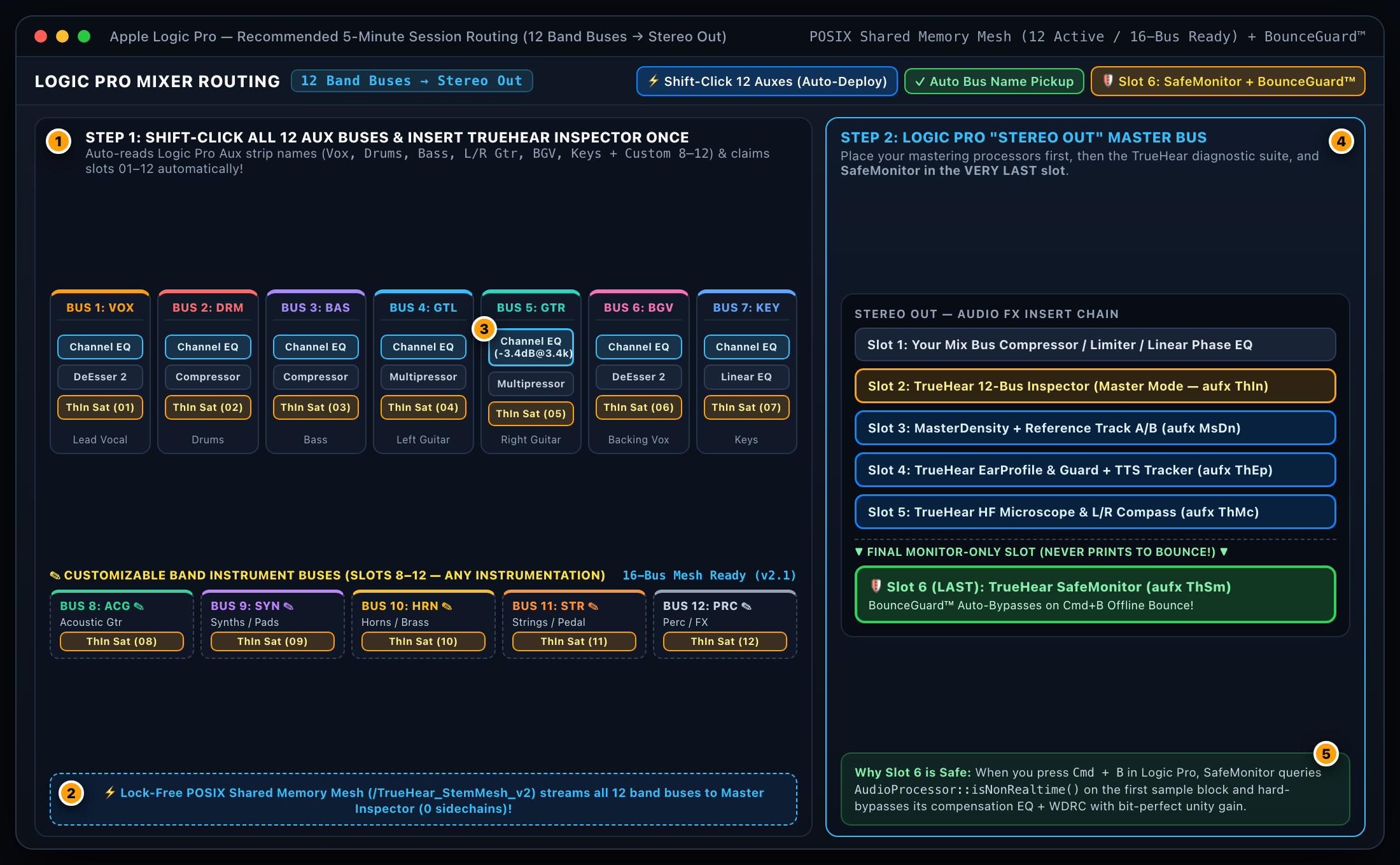
The 5-Minute Logic Pro Session Routing Setup
Before touching a single EQ knob, install the suite and set up your Logic Pro mixing template so TrueHear can monitor your individual instrument stems, analyze your master bus, translate high frequencies on demand, and apply safe monitor compensation at the very end of the signal chain.
📦 1-Click macOS Studio Multi-Mac .pkg & .dmg Installer (v2.2.0)
Installing TrueHear across your main control-room Mac, tracking-room MacBook Pro, or mobile mixing rig takes one click:
Run TrueHear-Studio-Suite-v2.2.0-macOS-Universal.pkg (or mount TrueHear-Studio-Suite-v2.2.0-macOS-Universal.dmg) on any Apple Silicon or Intel Mac.
Automatically installs all 5 Logic Pro AUv2 .component bundles (MasterDensity, TrueHearEarProfile, TrueHearHFMicroscope, TrueHearSafeMonitor, TrueHearMultiBusInspector) with custom macOS icon badges to /Library/Audio/Plug-Ins/Components/, installs TrueHearSuiteApp.app to /Applications/, seeds default Logic Pro & UAD presets, and refreshes macOS AudioComponentRegistrar automatically!
1
12 Customizable Band Summing Stacks: Starts with Vox, Drums, Bass, Left Guitar, Right Guitar, Backing Vocal & Keys + custom slots 8–12.
2
POSIX Shared-Memory Mesh:ThIn satellites stream 32-bit float audio across all 12 buses via /TrueHear_StemMesh_v2 (16-bus ready) with zero sidechains.
3
Native Logic EQ Slots: Place Logic’s stock Channel EQ before each satellite so exported .pst fixes drop right in.
4
Stereo Out Diagnostic Chain: Insert ThIn (Master), MsDn, ThEp, and ThMc after your mix-bus compressor.
5
Final Insert (SafeMonitor): Always place TrueHear SafeMonitor in the very last slot on Stereo Out.
Step-by-Step Logic Pro Template Checklist
Create Your Instrument Summing Track Stacks (Up to 12 Buses): Select your tracks in Logic Pro, press Cmd + Shift + D, and create Summing Stacks starting with the 7 Core Band Buses: 1. Vox (Lead Vocal), 2. Drums, 3. Bass, 4. Left Guitar, 5. Right Guitar, 6. Backing Vocal, and 7. Keys. Have horns, acoustic guitar, synth pads, strings, pedal steel, or percussion? Assign them to Customizable Band Slots 8–12!
1-Second Batch Insert Across All 12 Aux Buses + Automatic Bus Name Pickup:
Open Logic Pro’s Mixer (press X), Shift-click all 12 of your instrument Aux channel strips at once, and insert Audio Units → TrueHear → TrueHear Multi-Bus Inspector (aufx ThIn StTl) on a single slot (right after Logic’s stock Channel EQ).
Logic Pro instantiates TrueHearInspector across all 12 Aux buses simultaneously! Each instance queries CoreAudio’s kAudioUnitProperty_ContextName / JUCE’s updateTrackProperties() to automatically read the Logic Pro Aux channel strip name ("Vox", "Drums", "Bass", "Left Guitar", "Right Guitar", "BGV", "Keys", or any custom band bus like "Pedal Steel", "Horns", or "808 Sub"), assigns the matching acoustic role profile, and claims an open slot (01–12) in InterInstanceStemRegistry with zero slot collisions!
Click the ⚡ Deploy to All Busses button in the MultiBusInspector header at any time to broadcast a mesh-wide Auto-Discover & Sync Host Names refresh and export a complete 12-Bus Logic Pro Channel Strip & Preset Kit (01-VOX through 12-PRC) directly to ~/Music/Audio Music Apps/Plug-In Settings/TrueHearInspector/AutoDeploy-12Bus/ and ~/Music/Audio Music Apps/Channel Strip Settings/Bus/TrueHear 12-Bus Suite/.
Populate Your Stereo Out Master Channel Strip (In Exact Order):
Insert 1 (Optional): Your favorite mix-bus compressor, tape saturator, or mastering limiter.
Insert 2:TrueHear Multi-Bus Inspector (aufx ThIn StTl) set to Master Inspector mode. It automatically discovers all active band satellites (up to 12 buses, with 16-bus expansion ready) over POSIX shared memory!
Insert 3:MasterDensity (aufx MsDn StTl) for 12-zone Mid/Side congestion analysis and loudness-matched Reference Track A/B comparison.
Insert 4:TrueHear EarProfile & Guard (aufx ThEp StTl) for your 10-band audiogram, Over-Compensation Guard, and Session Ear Fatigue (TTS) tracking.
Insert 5:TrueHear HF Microscope (aufx ThMc StTl) for octave-down high-frequency auditioning and 4-band Left/Right symmetry checks.
Insert 6 (VERY LAST INSERT ON STEREO OUT):TrueHear SafeMonitor (aufx ThSm StTl).
🛡️ Why SafeMonitor + BounceGuard™ Saves Your Career
Every engineer who has ever used monitor-correction EQ has woken up in a cold sweat thinking: “Wait… did I forget to bypass my monitor EQ before bouncing the client’s master?” Because if you have +8.5 dB of high-shelf compensation dialed in for your ears and you print that to disk, the client receives a master that sounds like a swarm of angry cicadas inside a tin can.
TrueHear SafeMonitor makes that mistake physically impossible. On every single audio block, SafeMonitorAudioProcessor::processBlock() queries CoreAudio/JUCE’s isNonRealtime() flag. The millisecond you press Cmd + B in Logic Pro for an offline bounce (or Export All Tracks), BounceGuard™ engages and hard-bypasses all compensation filters and WDRC processing with bit-perfect unity gain (0.0 dB delta, zero phase shift, zero latency).
Chapter 3 • Tool 1 Reference aufx ThEp StTl
TrueHear EarProfile & Over-Compensation Guard
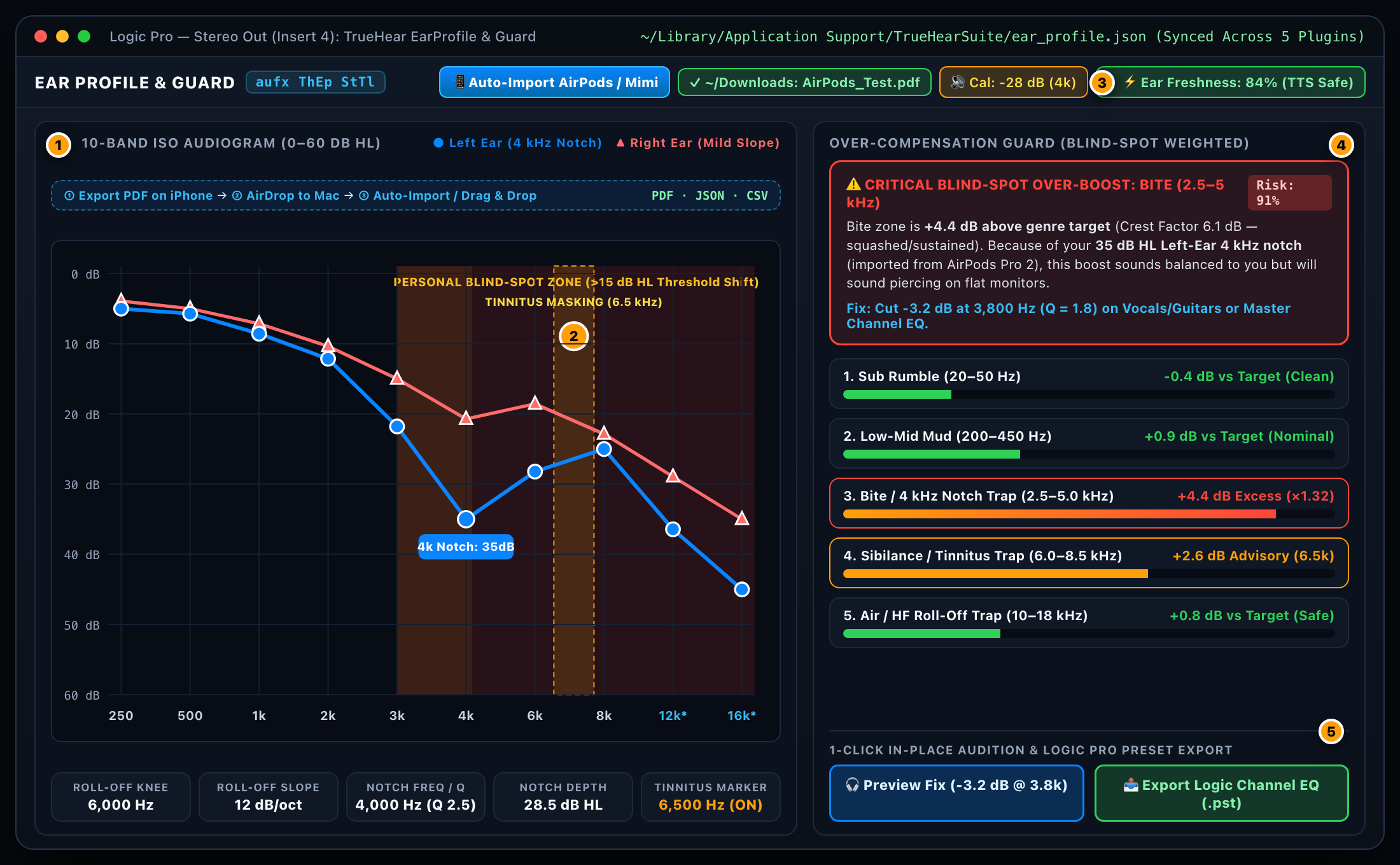
TrueHear EarProfile & Guard is both the brain of the entire plugin suite and your personal studio bodyguard against “4 PM Mix Syndrome.” When you adjust a single node on its 10-band clinical audiogram, the plugin atomically writes your curve to ~/Library/Application Support/TrueHearSuite/ear_profile.json and broadcasts a macOS Darwin Distributed Notification (com.truehear.suite.profileChanged) so every open plugin and the standalone app update within microseconds—with zero audio-thread locks or dropouts.
1
10-Band ISO Audiogram & 10-Second Import: Click 📲 Auto-Import AirPods / Mimi (auto-scans ~/Downloads), Drag & Drop onto the graph, or press Cmd + V.
2
Tinnitus & Blind-Spot Overlay: Shaded Amber/Red region marks thresholds >15 dB HL; vertical dashed column marks your exact Tinnitus pitch (e.g. 6.5 kHz).
3
v1.5 Session Ear Freshness (TTS): Tracks cumulative K-weighted session exposure and tightens Guard thresholds as your ears fatigue.
4
Over-Compensation Guard: Evaluates 5 critical studio zones weighted by your blind-spot severity and crest-factor harshness.
5
1-Click Preview Fix & Preset Export: Audition the recommended corrective bell cut in-place or export a native Logic Channel EQ.pst file.
Already took a hearing test on your iPhone with AirPods Pro 2 or the Mimi Hearing Test app? You don’t need cables, iCloud Drive folders, or a 2 GB Apple Health XML archive. Just follow this 10-second flow:
Step 1 — Export on iPhone (2 Taps):
For AirPods Pro 2: Open Apple Health on iPhone → Browse → Hearing → Hearing Test Results → tap Export PDF (or Share).
For Mimi Hearing Test: Open Mimi on iPhone → open your test results → tap Share / Export Report (or sync to Apple Health).
Step 2 — AirDrop to Your Mac (or Copy via Universal Clipboard): Tap Share → AirDrop and send it to your Studio Mac (it lands right in your Mac’s ~/Downloads folder—zero cables, zero iCloud digging).
Step 3 — 1-Click Auto-Find or Drag & Drop Onto the Graph: Inside TrueHear EarProfile, either:
Click 📲 Auto-Import AirPods / Mimi (TrueHear automatically scans ~/Downloads for the file you just AirDropped and loads it in one click!), OR
Drag and drop the PDF/JSON/CSV/XML straight from your Mac’s Downloads stack onto the Audiogram canvas, OR
Press Cmd + V (Paste) using Apple Universal Clipboard.
TrueHear instantly plots your Left (Blue) and Right (Coral) 250 Hz–8 kHz thresholds, extrapolates the 12 kHz & 16 kHz studio air bands from your roll-off slope, auto-detects any 3–6 kHz noise notch, and syncs all 5 Logic Pro AU plugins!
How to Dial In Your Ear Profile (4 Easy Ways)
1-Click Import From Apple AirPods Pro 2 (HealthKit) or Mimi Hearing Test (v2.0): Already took the clinical hearing test on your iPhone/iPad with AirPods Pro 2 (Apple Health) or the Mimi Hearing Test app? Click Import AirPods / Mimi in the top bar and select your Apple Health audiogram export (export.xml / HKAudiogramSample XML, PDF, or JSON) or Mimi export (.json, .csv, .xml). TrueHear automatically maps your Left/Right dB HL thresholds onto the 10-band studio grid, extrapolates the 12 kHz and 16 kHz studio air bands from your 4–8 kHz roll-off slope, auto-fits any 3–6 kHz noise notch, and syncs all 5 plugins instantly!
Start From a Clinical Archetype Preset: Use the Profile Preset dropdown to select Normal Flat, Mild Roll-Off, Noise Notch 4kHz (the classic rock guitarist/drummer dip), Age Slope, Asymmetric Dip, or Tinnitus.
Copy Your Audiologist’s Sheet (10 ISO Bands): Select Left Ear (Blue), Right Ear (Coral), or Link Both, and drag the 10 standard ISO nodes (250, 500, 1k, 2k, 3k, 4k, 6k, 8k, 12k, 16k Hz) between 0.0 dB HL (top) and 60.0 dB HL (bottom). Shape between-band contours using the parametric Roll-Off Knee, Roll-Off Slope, and Notch Frequency / Depth / Q controls.
Built-In Reference Tone & v2.0 3-Minute Warble Wizard: Toggle Calibration Tone (-60 to -12 dBFS). Whenever you click or drag an ISO node on the graph, the internal sine oscillator automatically snaps to that band’s exact ISO frequency so you can verify Left/Right loudness parity and pinpoint your Tinnitus frequency. (In v2.0, the full “AirPods Pro Style” 3-Minute Studio Wizard automates this right on your studio headphones/monitors with pulsed FM warble tones and a Tone-in-Pink-Noise cochlear synaptopathy check!)
Inside the Over-Compensation Guard Math
Why does the Guard catch harsh mixes that look “fine” on a regular analyzer? Because GuardEngine combines three psychoacoustic measurements across 5 studio trap zones (Sub Rumble 20–50 Hz, Mud 200–450 Hz, Bite 2.5–5.0 kHz, Sibilance 6.0–8.5 kHz, and Air 10–18 kHz):
Target Excess (dB): Measures how far each zone’s 150 ms leaky RMS energy exceeds a natural -4.5 dB/octave studio reference slope anchored to your mix’s midrange.
Personal Blind-Spot Severity (0.0 to 1.0): Queries SharedEarProfile::getBlindSpotSeverity01(centerHz) and getTinnitusProximity01(centerHz). If a frequency sits inside your 4 kHz notch or within 0.35 octaves of your tinnitus tone, the Guard knows you are flying blind there.
Crest-Factor Harshness Multiplier (×1.0 to ×1.4): A dynamic snare hit with a 14 dB peak-to-RMS crest factor at 3.8 kHz sounds punchy. A heavily clipped synth or over-compressed vocal wall with a 5.5 dB crest factor at 3.8 kHz sounds like a dentist’s drill. When crest factor drops below 9 dB in the Bite, Sibilance, or Air zones, GuardEngine scales the risk score up by up to 1.4×.
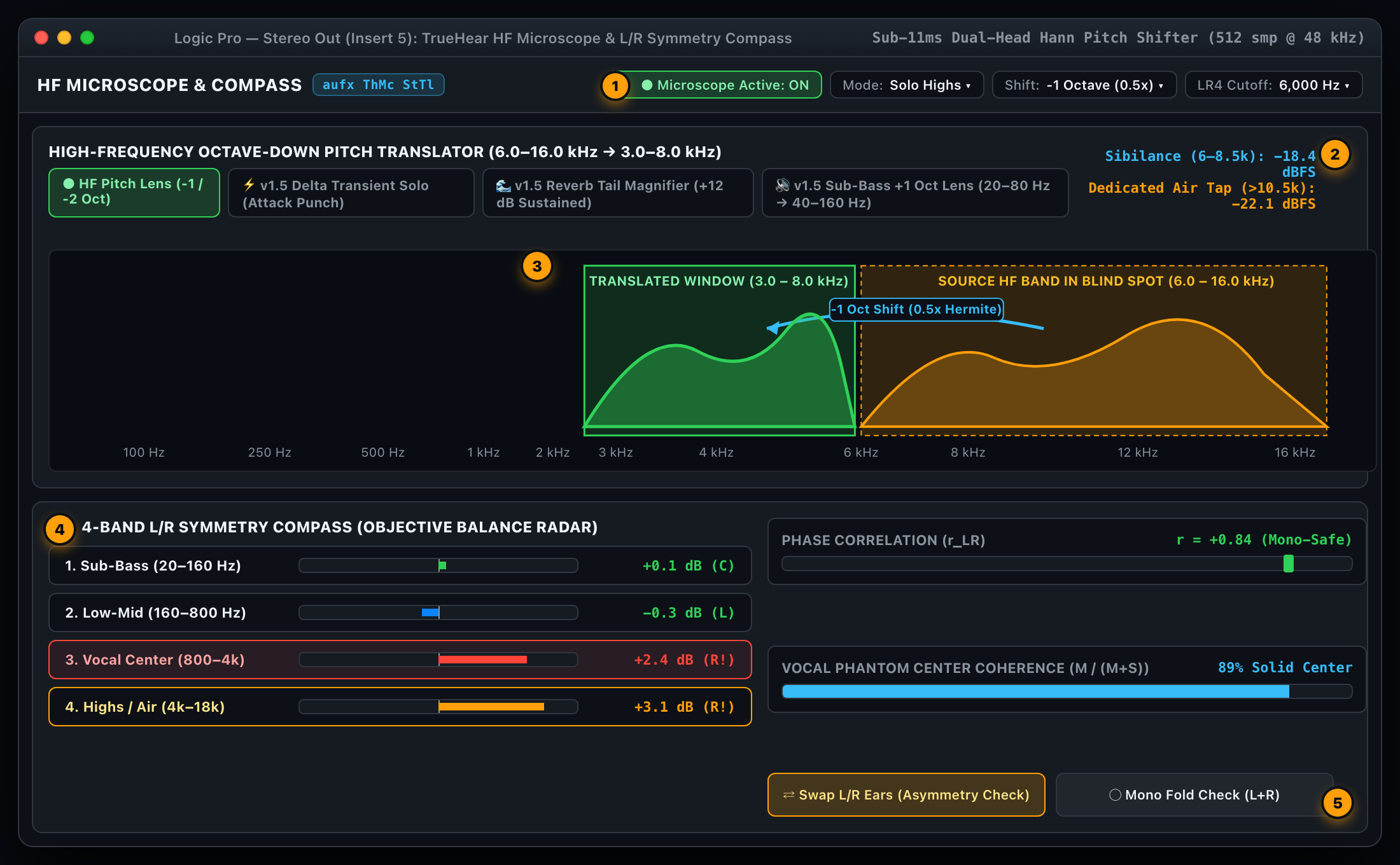
Here is the fundamental paradox of high-frequency hearing loss: if your ears roll off by 35 dB above 8 kHz, boosting 12 kHz by +15 dB on your monitor bus still won’t give you clean resolution—it just drives your tweeters and remaining hair cells into distortion. Instead of brute-force volume, TrueHear HF Microscope uses a sub-11 ms time-domain pitch translator to temporarily shift the entire 6.0–16.0 kHz octave down by 1 octave (into 3.0–8.0 kHz) or 2 octaves (into 1.5–4.0 kHz) right into your healthiest midrange!
1
Microscope Master Controls: Engage the pitch lens, choose Solo Highs or Mix Blend, select -1 Oct (0.5x) or -2 Oct (0.25x), and tune the LR4 highpass cutoff (3.5–12 kHz).
2
Independent Sibilance & Air Taps: Real-time RMS meters for Sibilance (6–8.5 kHz) and a dedicated >10.5 kHz highpass Air tap.
3
Spectral Translation Window: Visualizes your 6–16 kHz blind-spot content transposed into the 3–8 kHz green midrange audition zone, plus v1.5 Transient, Reverb Tail & Sub-Bass lenses.
4
4-Band L/R Symmetry Compass: Objective Left vs. Right energy tilt across Sub-Bass, Low-Mid, Vocal Center, and Highs.
5
Ear Swap (L↔R) & Coherence: Flip Left and Right channels with one click to catch asymmetric ear bias, alongside Phase Correlation (r_LR) and Vocal Center Coherence.
How the Sub-11 ms Dual-Head Hann Pitch Shifter Works
Phase-vocoder FFT pitch shifters smear transients over 40–80 ms, turning crisp hi-hats and vocal “ess” transients into watery mush. MicroscopeEngine instead uses a 4th-order Linkwitz-Riley (24 dB/oct) highpass pre-filter (cascaded 2nd-order Butterworth pairs) plus a 16.5 kHz ultrasonic lowpass filter to cleanly isolate the high frequencies, feeding a 4,096-sample circular ring buffer read by two 180°-out-of-phase rotating heads with a 512-sample (10.6 ms @ 48 kHz) raised-cosine Hann window and 4-point Hermite cubic interpolation.
Solo Highs Mode: Mutes the dry low/midrange completely so you hear only the transposed 6–16 kHz top end living at 3–8 kHz. Vocal spit, mouth clicks, bad de-esser release times, and harsh cymbal fizz jump out like they’re under a studio magnifying glass.
Mix Blend Mode: Blends the dry full-range mix with 50% of the octave-down high-frequency layer so you can set vocal de-esser thresholds and hi-hat fader levels in musical context.
Delta Transient Solo: Isolates fast- minus slow-envelope attack differentials so engineers with hidden hearing loss (cochlear synaptopathy) can hear exact compressor attack punch.
Reverb Tail Magnifier: Suppresses transients and lifts sustained decay tails by +12 dB so you can hear exactly when a vocal plate or hall reverb muddies the next lyric phrase.
Sub-Bass +1 Octave Lens (20–80 Hz → 40–160 Hz): Shifts sub-bass 1 octave up so engineers mixing on small nearfields or headphones can immediately hear 808 pitch tuning and kick/bass phase cancellation.
The 4-Band L/R Symmetry Compass & “The Stage-Left Snare Test”
If your left ear has 10 dB more loss at 3 kHz than your right ear, a perfectly centered lead vocal will sound to you like it’s panned slightly to the right. Before you touch your vocal pan pot or stereo bus EQ, look at the 4-Band L/R Symmetry Compass:
Band 1 — Sub-Bass (20–160 Hz): Kick and sub-bass anchor. Should sit within ±0.5 dB of dead center.
Band 2 — Low-Mid (160–800 Hz): Snare fundamental, bass harmonics, and guitar body warmth.
Band 3 — Vocal Center (800–4,000 Hz): The decisive phantom center anchor. If this bar reads 0.0 dB and Vocal Center Coherence (Mid / (Mid + Side)) is above 75%, your vocal is dead center—even if your left ear swears it’s leaning right!
Band 4 — Highs / Air (4,000–18,000 Hz): Cymbals, overheads, and stereo air spread.
The 1-Click Swap L/R Trick: Click Swap L/R while listening to your vocal and snare. If the vocal suddenly feels like it jumped to the same ear, your mix is balanced and your ears are asymmetric. If the tilt flips to the opposite side, the mix itself is lopsided!
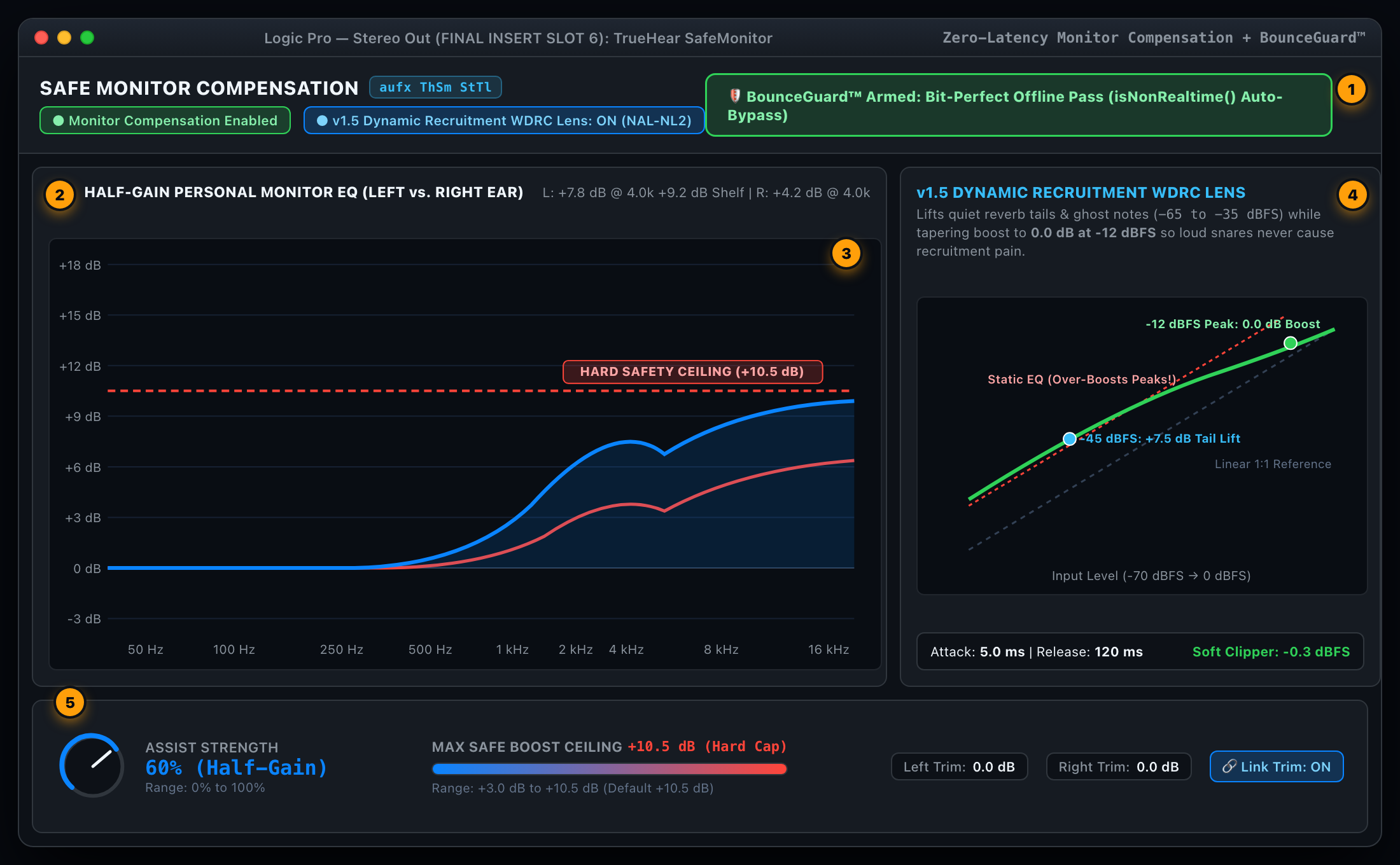
While EarProfile & Guard and HF Microscope help you diagnose problems, sometimes you just want to sit back, play the track, and enjoy a natural, balanced monitor feed tailored to your ears—without risking further hearing damage or printing your monitor EQ onto the master. That is the job of TrueHear SafeMonitor.
1
BounceGuard™ Shield: Continuously monitors isNonRealtime() and auto-bypasses during Logic Pro offline bounces.
2
Asymmetric L/R Half-Gain Curves: Independent Left (Blue) and Right (Coral) presence peaking bells + high shelves derived from your audiogram.
3
+10.5 dB Hard Safety Ceiling: Clamps maximum corrective boost and applies a transparent -0.3 dBFS soft-clip limiter to protect your ears.
4
v1.5 Dynamic Recruitment WDRC Lens: Lifts quiet -45 dBFS reverb tails while tapering to 0.0 dB at -12 dBFS snare peaks.
5
Assist Strength, Ceiling & Trim: Dial in 0–100% Assist Strength (default 60% Half-Gain), Ceiling (+3.0 to +10.5 dB), and L/R Trim.
Why Clinical Audiology Uses the “Half-Gain Rule” (Not 1:1 Boost)
If you have a 30 dB HL dip at 4 kHz, a naive engineer might think, “I’ll just put a +30 dB boost at 4 kHz on my speakers!” Do that once and you will either blow your monitor tweeters into orbit or trigger immediate cochlear pain. Why? Because of Loudness Recruitment: when outer hair cells in the cochlea are damaged, quiet sounds (-45 dBFS) are inaudible, but as sound pressure rises toward -12 dBFS, the inner hair cells fire all at once—meaning loud sounds are perceived at nearly the same loudness (and pain threshold) as a healthy ear!
SafeMonitorEngine protects your ears in three ways:
Audiological Half-Gain Scaling: At the default Assist Strength of 60%, SafeMonitor applies Lybarger’s clinical Half-Gain rule—restoring clarity and presence with a gentle, musical biquad peaking bell at your exact notch frequency plus a smooth high shelf above your roll-off knee.
Hard Safety Ceiling (+10.5 dB) & Soft Clipper: Even if you dial in a 60 dB HL audiogram loss and crank Assist Strength to 100%, SafeMonitor never allows total combined filter gain to exceed your Max Boost Ceiling (capped at +10.5 dB), followed by a smooth std::tanh saturation ceiling at -0.3 dBFS.
v1.5 Dynamic Recruitment WDRC Lens (NAL-NL2 / CAM2): Instead of applying static linear EQ boost at all volumes, the multiband Wide Dynamic Range Compression (WDRC) lens provides full half-gain lift on quiet studio details (-65 to -35 dBFS—reverb tails, vocal breaths, ghost notes, fade-outs) and smoothly compresses its corrective boost down to 0.0 dB at -12 dBFS so loud snare hits and vocal peaks never make you wince!
Parameter ID
UI Control Name
Range & Default
Practical Studio Usage
monitorEnabled
Monitor Compensation Enabled
On / Off (Def: On)
Master real-time toggle to A/B your compensated monitor feed against flat unity gain.
assistStrength
Assist Strength
0% to 100% (Def: 60%)
Scales the audiological compensation curve. Keep at 50–65% for natural mixing; raise to 80% for low-volume late-night editing.
maxCeilingDb
Max Boost Ceiling
+3.0 to +10.5 dB (Def: +10.5 dB)
Hard upper limit on combined peaking bell + high-shelf gain in either ear.
trimLeftDb & trimRightDb
Left / Right Trim
-6.0 to +6.0 dB (Def: 0.0 dB)
Fine-tunes broadband L/R monitor gain (or overall headroom when Link Trim is active).
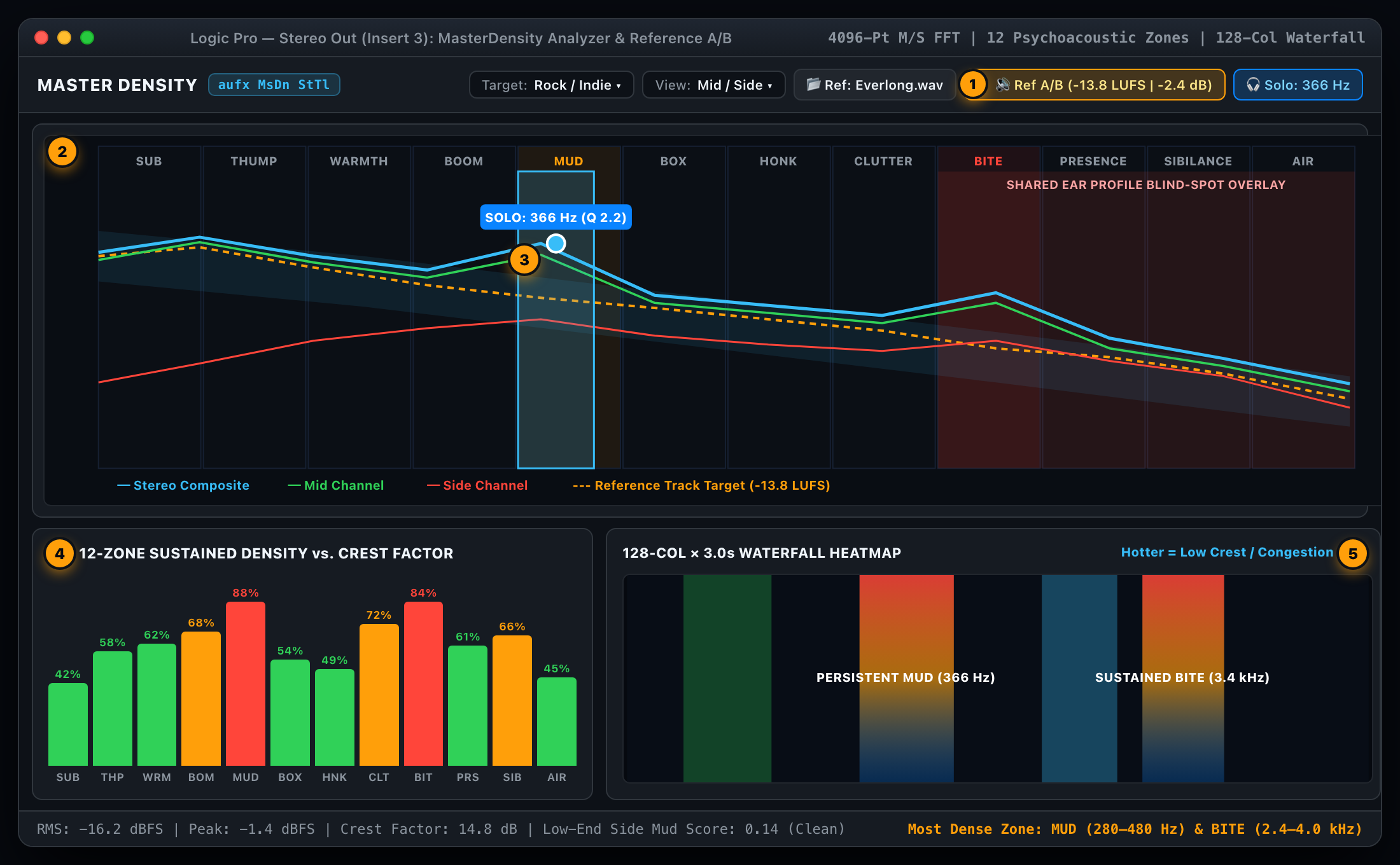
When your ears have broadened auditory filters (cochlear smearing) or a high-frequency roll-off, two things happen on the master bus: low-mid mud (200–500 Hz) piles up into a thick wall of wool, and you lose track of how your mix’s tonal balance compares to commercial releases. MasterDensity turns spectral congestion, Mid/Side width, and commercial reference track comparison into an unmistakable visual map.
1
Loudness-Matched Reference A/B: Load any WAV/AIFF/FLAC/MP3/M4A reference track; MasterDensity automatically gain-matches it via ITU-R BS.1770-4 K-weighted loudness.
2
12 Psychoacoustic Mixing Zones: Divides 20 Hz–20 kHz into 12 named production zones with Mid/Side curves and your personal blind-spot overlay.
3
Interactive Bandpass Solo Handle: Click and drag anywhere on the spectrum to solo that exact frequency band (in Stereo, Mid Only, or Side Only).
4
12-Zone Density vs. Crest Factor: Highlights zones where energy is both loud and dynamically squashed (low crest factor = high congestion).
5
128-Col × 3.0s Waterfall Heatmap: Reveals sustained resonant mud and harshness streaks over a rolling 96-row (3.0-second) history.
The 12 Psychoacoustic Studio Mixing Zones
Instead of forcing you to mentally translate raw Hertz numbers while mixing, DensityAnalysisEngine partitions the audio spectrum into the 12 exact functional zones mixing engineers care about:
Zone # & Code
Range (Hz) & Center
Studio Meaning
What High Density / Low Crest Means Here
1. SUB
20–45 Hz (30 Hz)
Rumble / Sub Headroom
DC offset, mic stand rumble, or 808 sub eating limiter headroom. High-pass non-bass tracks at 30 Hz.
2. THUMP
45–85 Hz (62 Hz)
Kick & Sub Weight
Chest punch. If Side Ratio > 0.20 here, your sub-bass is out of phase in stereo—mono your bass below 90 Hz!
3. WARMTH
85–160 Hz (116 Hz)
Bass & Snare Body
Fundamental weight of bass guitar, floor tom, and snare fatness.
4. BOOM
160–280 Hz (212 Hz)
Low-Mid Wool
Acoustic guitar boom, vocal proximity effect, and thick synth pad buildup.
5. MUD
280–480 Hz (366 Hz)
Master Bus Mud
The #1 enemy of clarity. When rhythm guitars, keys, snare reverb, and bass harmonics pile up here, the mix sounds veiled.
6. BOX
480–800 Hz (620 Hz)
Cardboard / Boxy
Small-room drum ambience and hollow midrange resonance. A -2 dB cut at 600 Hz instantly modernizes drums.
7. HONK
800–1,400 Hz (1,058 Hz)
Nasal Crowding
Nasal vocal resonance, horn honk, and mid-forward guitar amp congestion.
8. CLUTTER
1,400–2,400 Hz (1,833 Hz)
Vocal / Inst Masking
Where electric guitars, pianos, and backing vocals fight the lead vocal’s fundamental intelligibility.
9. BITE
2,400–4,000 Hz (3,098 Hz)
Harshness / 4k Notch Trap
Ear canal resonance (Fletcher-Munson peak) and the classic rock noise-notch trap. Over-boosting here causes instant listener fatigue.
If you drag a mastered commercial WAV or MP3 reference track into your DAW at -8.5 LUFS and compare it to your unmastered live mix at -16.0 LUFS, the commercial track is 7.5 dB louder—which triggers the Fletcher-Munson equal-loudness effect and tricks your brain into thinking your mix has no bass and no air.
When you click Load Ref in MasterDensity, ReferenceTrackManager decodes the file in a background thread, computes its ITU-R BS.1770-4 K-weighted integrated loudness, extracts its 12-zone energy/crest profile and 128-column spectrum (drawn as a dashed Amber target curve), and automatically attenuates or boosts the reference stream (clamped within ±18 dB) during Ref A/B Audition so the reference plays at the exact same RMS/LUFS loudness as your live mix!
Chapter 7 • Tool 5 Reference aufx ThIn StTl
12-Bus Instrument Inspector & Native Logic Pro + UAD Presets
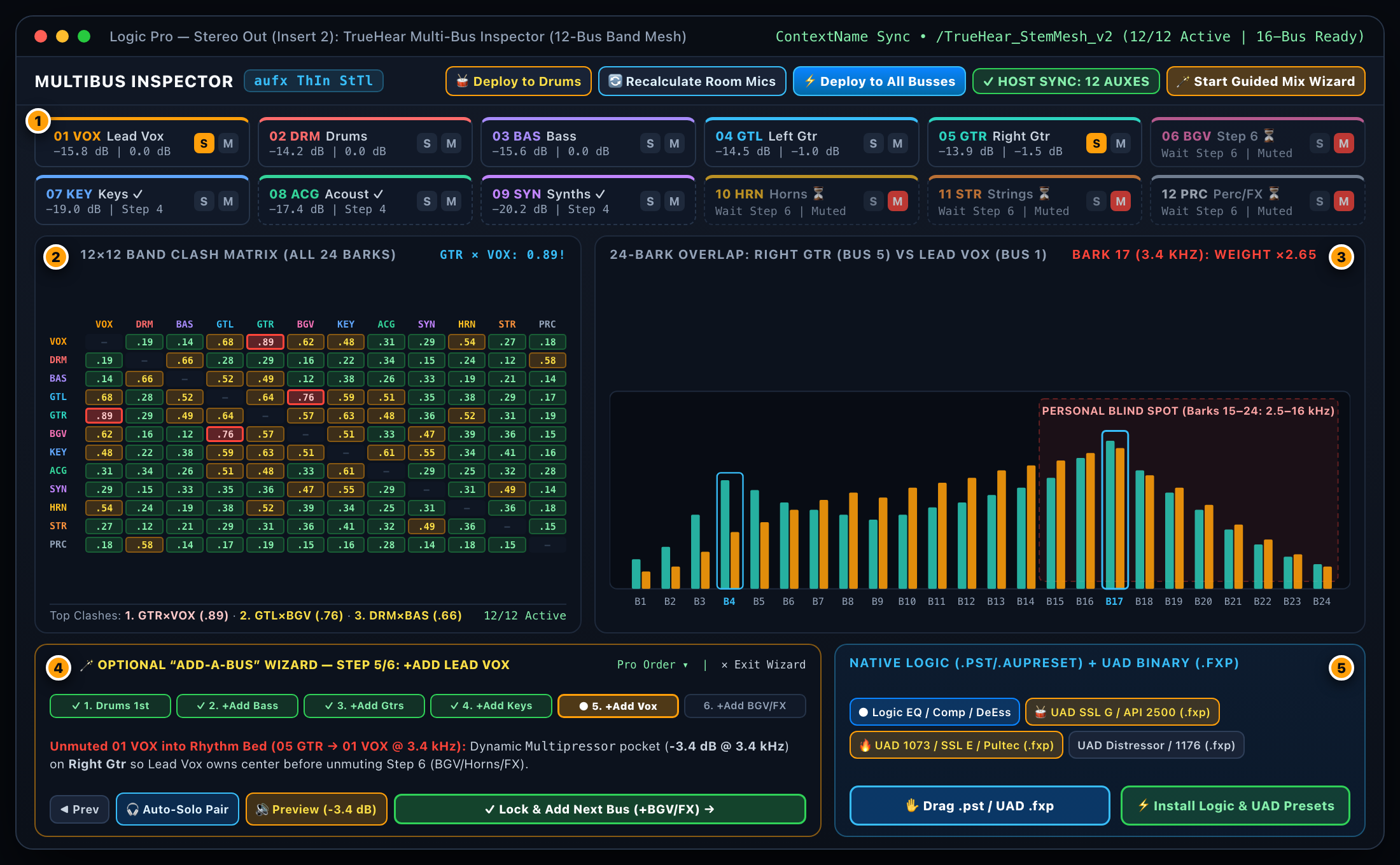
Even minor hearing loss widens the cochlea’s critical auditory filters (Equivalent Rectangular Bandwidths, or ERBs). When two instruments occupy the same Bark critical band—like Bass and Left Guitar at 350 Hz (Bark 4), or Right Guitar and Lead Vocals at 3,400 Hz (Bark 17)—a healthy ear can still separate them by temporal fine structure, whereas an ear with widened cochlear filters hears a single blurred smear.
TrueHear Multi-Bus Inspector solves inter-bus masking across up to 12 stereo instrument buses simultaneously (with 16-bus shared-memory architecture headroom for Phase 9 / v2.1). Out of the box, it starts pre-configured for a real band’s core 7 buses—1. Vox (Lead Vocal), 2. Drums, 3. Bass, 4. Left Guitar, 5. Right Guitar, 6. Backing Vocal, and 7. Keys—while Slots 8–12 can be customized to any instrumentation your band has (e.g., Acoustic Guitar, Synths / Pads, Horns / Brass, Strings / Fiddle, Pedal Steel, or Percussion / FX)—and writes the exact corrective EQ preset directly into Logic Pro’s native plugins.
1
12-Bus Customizable Strip: Core 7 band buses (VOX, DRM, BAS, GTL, GTR, BGV, KEY) + 5 user-customizable band slots (8–12).
2
12×12 All-24-Bark Clash Matrix: Displays the maximum blind-spot-weighted clash severity across all 24 Zwicker Bark bands for every active bus pair.
3
24-Band Bark Overlap & Upward Masking: Side-by-side bus power bars across Barks 1–24 with -12 dB/Bark upward masking spread and blind-spot weighting.
4
🪄 5-Stage Guided Bus Fix Wizard: Sequences every active clash in pro mix order (Low-End → Mud → Vox Pocket → BGV/Rhythm → Air) with 1-click Auto-Solo, Preview Fix, and Apply & Next Bus.
5
Native Logic Pro Preset Exporter: Drag-and-drop or 1-click install bit-accurate .pst and .aupreset files for Logic’s native mixing suite.
🥁 Drums First Always (`Stage 0: 12-Mic Drum Kit Mode` → Swappable Drum Bus Glue Compressor → Full Band Mix)
Every veteran mixer knows the golden rule: Drums first, always. Then everything else. Before you touch guitars, keys, or vocals, flip TrueHear Inspector into 🥁 Drum Kit Mode (Drums First), Shift-click all 12 drum mic tracks inside your Logic Pro Drum Summing Stack, and insert TrueHear Inspector once:
🥁 Deploy to Drums + Flexible Fuzzy Drum Track Name Matcher (matchDrumTrackNameToSlot): Clicking 🥁 Deploy to Drums reads every drum track’s name from Logic Pro (kAudioUnitProperty_ContextName / updateTrackProperties) using a flexible fuzzy/tokenized parser that understands any studio naming style—whether you name tracks "Inner Kick" / "Kick In" / "Kik 1" / "Beta 91", "Outer Kick" / "Kick Out" / "Sub Kick", "Snare Top" / "Snr Top" / "SD 57", "Snare Bottom" / "Snr Bot" / "Snare Wires", "Tom 1" / "Rack 1" / "Hi Tom", "Tom 2" / "Mid Tom", "High Hat" / "Hi-Hat" / "HH", "Stereo Overheads" / "OH L/R", "Floor Tom" / "FT", "Sound City" / "Virtual Room" / "Drum Room", "Crush" / "Smash", or "Drum Bus". Even if two tracks are just named "Kick" and "Kick 2" (or "Snare" and "Snare 2"), collision-aware fallback automatically assigns the first to 01 Inner Kick (03 Snare Top) and the second to 02 Outer Kick (04 Snare Bottom)!
8 Default Core Dry Drum Channels + Virtual Room Aux Inside Drum Sub-Mix (DrumKitSubMix): Defaults to the exact 8 core dry drum channels: 01 Inner Kick (KIN) • 02 Outer Kick (KOT) • 03 Snare Top (SNT) • 04 Snare Bottom (SNB) • 05 Tom 1 (TM1) • 06 Tom 2 (TM2) • 07 High Hat (HHT) • 08 Stereo Overheads (OVH) — plus Drum Sub-Mix expansion slots 09–12: 09 Tom 3 / Floor Tom (FLT) • 10 Parallel Crush (CRS) • 11 Virtual Room Aux (VRM — e.g., UAD Sound City Studios) • 12 Master Drum Bus (DRM)! Because the 8 dry drum channels (`01–08`) are phase-locked and EQ’d first, they send a clean, punchy signal into 11 Virtual Room Aux (UAD Sound City Studios) before summing into 12 Master Drum Bus glue!
1-Click 🔄 Recalculate Room Mics Button (recalculateVirtualRoomBus() — Right in the Drum Toolbar): Whenever you move the virtual room microphones inside UAD Sound City Studios (changing distance from the kit, swapping virtual mic models like C12 ↔ RCA 44 ↔ U47, or adjusting chamber damping/curtains) during drum mixing, clicking 🔄 Recalculate Room Mics flushes only the Virtual Room bus’s spectral/phase buffers—keeping your 8 dry drum mic fixes (`01–08`) 100% untouched—and immediately re-measures:
1. Virtual Room ↔ 08 Stereo Overheads / 03 Snare Top Arrival Lag (Δt ms) & Comb-Filtering Risk: Detects whether moving the Sound City virtual mics closer created phase cancellation against your dry overheads or snare.
2. Dynamic Abbey Road / Sound City Drum Room EQ Re-Solve: Adapts the 180–210 Hz Sub-Boom HPF (protecting dry kick punch), dynamic 260–340 Hz low-mid room-mud carve, 2.2 kHz vocal-pocket carve, and 7.5 kHz Silk LPF (so 08 Stereo Overheads own the cymbal air) to the new virtual mic placement before feeding into 12 Master Drum Bus glue!
Coupled 2-Mic Drum Pair Solvers (01 Inner Kick ↔ 02 Outer Kick & 03 Snare Top ↔ 04 Snare Bottom): Clicking the 01 KIN ↔ 02 KOT or 03 SNT ↔ 04 SNB cell in the matrix (or stepping through Stage 0.1 and Stage 0.2) solves specifically for those two mics as a coupled acoustic pair:
Inner Kick ↔ Outer Kick Solver: Checks 45–160 Hz phase correlation (r) and acoustic arrival offset (Δt ms) between the inside beater mic and outside resonant head mic, and builds a complementary 2-mic split (Outer Kick owns 52 Hz sub + -3.5 dB @ 85 Hz pocket + 3.5 kHz LPF; Inner Kick gets 55 Hz HPF + +2.5 dB @ 80 Hz punch + 3.8 kHz click).
Snare Top ↔ Snare Bottom Solver: Catches the #1 studio drum mistake—an un-flipped 04 Snare Bottom mic (r < -0.20 at 195 Hz, where top and bottom diaphragms face opposite directions and cancel out 6 dB of snare body!)—gives a 1-click Ø Flip Polarity button, and high-passes Snare Bottom at 180 Hz so Snare Top owns the 195 Hz meat while Snare Bottom owns the 5.2 kHz wire sizzle.
Close-Mic ↔ 08 Stereo Overheads Phase & Comb-Filtering Detector: Continuously measures real-time cross-correlation (r ∈ [-1, +1]) and time-of-flight delay (Δt ms, e.g., Snare Top arrives 3.1 ms [149 samples] before Stereo Overheads) between every close drum mic (Inner/Outer Kick, Snare Top, Tom 1, Tom 2, High Hat) and 08 Stereo Overheads, flagging polarity inversions and comb-filtering cancellations that engineers with high-frequency hearing loss might miss!
Why “Drums First” Saves SNHL Engineers from Cymbal-Bleed & Cardboard Mud (deployDrumKitSubMixChain()): Close drum mics (Snare Top, Toms) contain -10 to -15 dB of hi-hat/cymbal bleed at 3.5–7 kHz. If you have a 4 kHz noise notch and boost upper-mid attack on a snare or tom, you inadvertently pull up abrasive cymbal wash! TrueHear solves this by deploying split-band DeEsser 2 (6.0–6.8 kHz) on Snare Top and Toms + a 3.5 kHz LPF on Outer Kick + -3.5 dB @ 3.8 kHz blind-spot cuts on Stereo Overheads, while carving 265–340 Hz cardboard shell buildup across all drums so upward cochlear masking doesn’t veil the vocal pocket.
“Zero Loudness Deception” Crest-Factor Squash Guard (verifyDrumBusCompressorHealth): Continuously monitors your Master Drum Bus dynamics (healthy drum window: 10.0–16.5 dB crest factor) and triggers an alert if a swapped UAD/Waves compressor drops the Drum Bus Crest Factor below 8.5 dB—preventing fast-attack presets from squashing snare snap and pulling up harsh cymbal wash!
At the end of your Master Drum Bus (12 DRM), TrueHear automatically configures Logic Pro’s stock Compressor so your kit hits with cohesive studio glue right out of the box—and gives you exact, loudness-matched parameter targets so you can swap in your favorite UAD or Waves bus compressor in seconds:
Master Drum Bus Compressor
Ratio & Circuit
Attack & Release
Sidechain / Detector
Target GR & SNHL Studio Notes
Logic Pro Compressor (Default)
4:1 • Vintage VCA
30 ms Atk • 100 ms Rel
SC HPF: 90 Hz
2.5–3.5 dB GR • Auto Gain: OFF (preserves natural stick snap)
UAD / Waves SSL G-Master Buss
4:1 • VCA Bus Glue
30 ms Atk • 0.1s / Auto Rel
SC HPF: 90 Hz
3.0 dB GR • Classic rock/pop drum bus glue without pumping on kick hits
UAD / Waves API 2500
3:1 or 4:1 • Tone: New
30 ms Atk • 0.1s Rel
Thrust: Med (HP detector)
2.5–3.5 dB GR • Thrust: Med keeps sub-kick from choking upper-mid punch
UAD 1176LN / Waves CLA-76
4:1 (or All-Buttons on Crush)
Atk: 1 (Slowest) • Rel: 7 (50ms)
SC HPF: 90 Hz
Mix: 35–50% parallel blend so ultra-fast FET attack doesn’t bring up cymbal bleed
Free-Mix Mode by Default, Guided Wizard on Demand: By default, TrueHear Inspector runs in standard Free-Mix 12-Bus Matrix Mode—all 12 buses play normally and you can click any clash cell or bus in any order you like. The 🪄 Guided “Add-a-Bus” Mix Wizard is 100% optional: you kick it off whenever you want by clicking the 🪄 Start Guided Mix Wizard button in the top toolbar (and you can return to Free-Mix mode at any time with ✕ Exit Wizard).
When you start a mix with all 12 buses blaring at once, widened cochlear filters (ERB smearing) and upward masking make it nearly impossible to tell where the mud or harshness is coming from. Clicking 🪄 Start Guided Mix Wizard turns TrueHear Inspector into a Progressive “Add-a-Bus” Mix Builder:
When you launch Step 1, TrueHear automatically mutes the rest of the band (progressiveActiveBusMask) so you only hear 🥁 Drums (`02 DRM`). Each time you click ✓ Lock & Add Next Bus →, TrueHear automatically unmutes the next bus group into the mix, measures how the newly added bus interacts with the foundation you already locked in, lets you click 🔊 Preview Fix, and writes the Logic Pro .pst/.aupreset as you build the record layer by layer:
Step 1 — 🥁 Setup Drums First (8 Dry Drum Mics + 11 Virtual Room Aux [UAD Sound City] → 12 Master Drum Bus Soloed): All non-drum buses are auto-muted. Dials in per-mic dry drum EQ (`01–08`), 2-mic Kick/Snare phase, cymbal-bleed de-essing (DeEsser 2), your 11 Virtual Room Aux (UAD Sound City Studios) Abbey Road/Sound City room contour (with 1-click 🔄 Recalculate Room Mics whenever you move virtual mics in Sound City), and the end-of-chain Master Drum Bus Glue Compressor (with UAD / Waves swap targets and ≥8.5 dB crest-factor guard).
Step 2 — 🎸 Add Bass Bus (02 Drums + 03 Bass | 20–160 Hz): Unmutes 03 Bass into your glued 02 Drums and locks in the 45–120 Hz Kick/Bass pocket using dynamic spectral ducking (Multipressor), stopping low-end energy from triggering upward cochlear masking across the midrange.
Step 3 — ⚡ Add Left & Right Guitars (+ 04 GTL & 05 GTR | 160–500 Hz): Unmutes stereo guitars into Drums + Bass and applies static surgical cuts (Channel EQ) to clear 220–400 Hz cabinet boxiness so broadened auditory filters (ERB smearing) don’t cloud the mix.
Step 4 — 🎹 Add Keys, Acoustic & Synths (+ 07 KEY, 08 ACG, 09 SYN | 200 Hz–2.5 kHz): Unmutes keys, acoustic guitars, and synth pads into the rhythm bed and separates them cleanly from the electric guitars.
Step 5 — 🎤 Add Lead Vocal (+ 01 VOX — Right After Rhythm Beds! | 800 Hz–4.5 kHz): Unmutes 01 Vox on top of the locked rhythm track and carves a dynamic 1.5–4 kHzMultipressor pocket in the Guitars & Keys so 01 Vox owns the center without boosting into your 4 kHz hearing notch.
Step 6 — 🎶 Add Backing Vocals, Horns, Strings & FX Last (+ 06 BGV & 10–12 | 500 Hz–16 kHz): Unmutes 06 BGV and auxiliary ear-candy after the Lead Vocal is sitting on the throne—tucking harmonies neatly behind 01 Vox and resolving 4.5–16 kHz cymbal-vs-vocal sibilance clashes with DeEsser 2! (Plus a 1-click header toggle between “Pro Order (Vox Before BGV/Sweeteners)” and “Vocals Last”!)
At each Wizard step (Step 1 of N), TrueHear auto-solos the two clashing buses (🎧 Auto-Solo Pair), explains why this pair comes next, lets you click 🔊 Preview Fix to audition the EQ carve in-place, and provides a 1-click ✓ Apply Fix & Next Bus → button that writes the Logic Pro .pst/.aupreset and advances straight to the next bus!
Even better, the Wizard enforces three clinical psychoacoustic safeguards so your mix stays natural, punchy, and musical:
1. Cascade Upward-Masking Relief (cascadeReliefDb): Applying a Stage 1 (20–160 Hz) or Stage 2 (160–500 Hz mud) cut automatically recalculates upward cochlear masking into the midrange (1.5–4 kHz) and reduces downstream Stage 3–4 vocal-pocket cuts so you never over-cut!
2. Stage-Aware Dynamic vs. Static Selection: Uses Dynamic Spectral Ducking (Multipressor) for Stage 1 Kick/Bass (45–120 Hz) and Stage 3 Lead Vocal Pockets (800 Hz–4.5 kHz so guitars/keys stay 100% lush when the vocalist isn’t singing), Static Surgical Cuts (Channel EQ) for Stage 2 Low-Mid Mud (160–500 Hz), and Dynamic De-Essing (DeEsser 2) for Stage 5 Sibilance/Air (4.5–16 kHz).
3. “Swiss-Cheese Mix” Prevention Guard (Max 3 Cuts / -9.5 dB Budget Per Bus): Consolidates nearby cuts within <0.35 octaves and caps any single bus at 3 EQ cuts max—automatically pivoting any 4th clash on that bus to a -1.5 to -2.5 dB broadband fader or stereo pan trim instead of carving a 4th hole!
Automatic Logic Pro Bus Name Pickup & ⚡ Deploy to All Busses
Nobody wants to manually configure 12 plugin dropdowns when inspiration is striking. TrueHearInspector combines Apple’s Audio Unit host context property with lock-free slot negotiation so you can wire an entire 12-bus band mix in one second:
Automatic Logic Pro Bus Name Pickup (kAudioUnitProperty_ContextName / updateTrackProperties): The moment TrueHearInspector is inserted on a Logic Pro Aux channel strip, it reads the Aux bus name directly from Logic Pro ("Vox", "Drums", "Bass", "Left Guitar", "Right Guitar", "BGV", "Keys", or any custom band bus like "Pedal Steel", "Horns", "Fiddle", or "808 Sub"), matches its acoustic role profile and hierarchy priority, and atomically claims an open slot (01–12) in InterInstanceStemRegistry with zero slot collisions.
1-Second Shift-Click Batch Insert in Logic’s Mixer: Press X in Logic Pro, Shift-click all 12 Aux buses at once, and insert TrueHearInspector on a single slot. Logic Pro instantiates all 12 satellites simultaneously—each one reads its own Aux strip name, negotiates slots 01–12 without colliding, and lights up the ✓ HOST SYNC: 12 LOGIC AUXES AUTO-NAMED badge in the Master Inspector!
The ⚡ Deploy to All Busses Header Button: Clicking ⚡ Deploy to All Busses in the top toolbar performs two studio-saving actions at once:
Broadcasts a mesh-wide Auto-Discover & Sync Host Names command across all active instances so any renamed Aux strips in Logic Pro immediately update across all open plugin windows and the standalone app.
Writes a complete 12-Bus Logic Pro Channel Strip & Preset Kit (01-VOX through 12-PRC, named after your active 12 buses) directly to ~/Music/Audio Music Apps/Plug-In Settings/TrueHearInspector/AutoDeploy-12Bus/ and ~/Music/Audio Music Apps/Channel Strip Settings/Bus/TrueHear 12-Bus Suite/.
16-Bus Architecture Headroom (Phase 9 / v2.1): The underlying POSIX shared-memory segment (/TrueHear_StemMesh_v2) pre-allocates 64-byte cache-line-aligned ring slots for up to 16 stereo buses, allowing seamless expansion to 16 simultaneous buses for double drum kits, horn sections, or large live multitracks without breaking session compatibility.
In Logic Pro, Audio Unit plugins only allow a single sidechain input—meaning traditional multi-track analyzers force you into a spaghetti nightmare of Aux sends. InterInstanceStemRegistry eliminates sidechain routing completely:
Each Stem Satellite instance pushes stereo 32-bit float audio blocks into a lock-free, 64-byte cache-line-aligned Single-Producer Single-Consumer (SPSC) ring buffer (65,536 samples per channel, magic header 0x5448534D 'THSM') in POSIX shared memory, tagged with the DAW playhead’s sample timestamp.
The Master Inspector instance on your Stereo Out reads all 12 active band buses with sample-accurate playhead alignment, allowing you to click S on Bass + Drums, compare Left Guitar vs. Right Guitar, or solo Right Guitar + Lead Vocal and engage Clash Bandpass Solo to hear only the colliding 3,400 Hz Bark band!
When MultiBusClashEngine and FixSuggestionEngine identify a masking collision (or when MasterDensity calculates a Reference Track delta curve, or DrumKitSubMix solves your 12-mic drum kit), you don’t have to manually copy frequencies, gains, Q values, or compressor ratios into your plugins. LogicPresetWriter serializes both native Apple Logic Pro presets and native Universal Audio (UAD) binary .fxp presets directly to disk:
UAD SSL G Bus Compressor (fxID: YBAU, 11 params):TrueHear Master Drum Bus Glue (4:1 ratio, 30 ms Attack, 100 ms / Auto Release, 90 Hz SC HPF, ~3.0 dB GR).
UAD API 2500 (fxID: UBAU, 18 params):TrueHear Drum Bus Thrust & Punch (3:1–4:1, 30 ms Attack, 0.1s Release, Thrust: Med, Tone: New).
Don’t have Logic Pro open? Launch TrueHearSuiteApp.app on macOS to access all 5 tools in a single Apple-clean desktop window with a top segmented tab bar (1. Ear Profile & Guard, 2. HF Microscope & Compass, 3. Safe Monitor, 4. Master Density, 5. Multi-Bus Inspector).
3 Flexible Audio Input Sources: Switch effortlessly between Hardware Input (route CoreAudio loopback / BlackHole / interface inputs to analyze Spotify, Apple Music, or any DAW), Master Mix File (load WAV/AIFF/FLAC/MP3/M4A bounces with transport loop & scrub bar), and 12-Bus Multi-Track Stem Player (load up to 12 discrete instrument stem files—starting with Vox, Drums, Bass, Left Guitar, Right Guitar, Backing Vocal, and Keys—to practice clash detection and generate Logic presets offline).
Built-In Mix Fault Training Simulators: Use the Ear Profile & Guard and Multi-Bus tabs to train your ears on classic blind-spot traps before starting a mix session.
The Veteran Mixer’s “Symptom → Tool → Fix” Cheat Sheet
What Happens When You Play the Bounce Outside the Studio
Why Your Ears Did It
Which TrueHear Tool Catches It
The 30-Second Fix
1. Vocals & guitars sound like a chainsaw in the car (`3–4.5 kHz` harshness)
Your 4 kHz noise notch made the upper-mids sound dull, so you boosted +4.5 dB at 3.8 kHz at 4:30 PM.
EarProfile & Guard (aufx ThEp) — Bite Zone Red Alert
Click Preview Fix in ThEp to audition the cut, then click Export to Logic Channel EQ.
2. Vocal “ess” sounds and hi-hats are piercing on earbuds (`6.5–10 kHz`)
High-frequency roll-off or 6.5 kHz tinnitus masked the sibilance while you were boosting vocal air.
HF Microscope (aufx ThMc) — Solo Highs (-1 Oct)
Flip on Microscope Active (-1 Oct). You’ll immediately hear the “ess” living at 3.5 kHz. Drop a Logic DeEsser 2 preset on the Vocal bus.
3. Lead vocal gets swallowed every time the chorus guitars kick in
Widened cochlear filters (ERB smearing) hid an 84% overlap between Right Guitar and Lead Vox at Bark 17 (`3.4 kHz`).
Click the red GTR × VOX cell in the 12×12 matrix and drag the generated .pst preset onto the Right Guitar (Bus 5) Channel EQ (never boost the vocal into your notch!).
4. The whole mix sounds like it’s wrapped in a wet wool blanket (`280–450 Hz`)
Upward psychoacoustic masking (`-12 dB/Bark`) from low-mid mud is drowning your upper-midrange detail.
MasterDensity (aufx MsDn) — MUD Zone + Waterfall
Click-and-drag the Band Solo handle across 320–400 Hz in MsDn to hear the offending resonance, then carve -2.5 dB on the Bass/Guitars/Keys buses.
5. Lead vocal & snare feel panned 15% to the right on flat monitors
Your left ear has 10–15 dB more upper-mid loss from years of stage-left snare/amp exposure, pulling your perceived center left.
HF Microscope Compass (aufx ThMc) — Vocal Center Bar + Swap L/R
Check the Vocal Center (800–4k Hz) tilt bar and click Swap L/R. Trust the 0.0 dB compass readout instead of panning crooked!
6. Reverb tails vanish when quiet, then snare hits hurt when you turn monitors up
Outer hair-cell loss causes Loudness Recruitment (narrowed dynamic range between threshold and pain).
Enable SafeMonitor + WDRC Lens on the final Stereo Out slot. It lifts `-45 dBFS` reverb tails by +7 dB while tapering to `0 dB` at `-12 dBFS` snare peaks.
7. Mix sounds wide on headphones, but the bass disappears on a mono club sub
Stereo chorus/widener on bass or synth pads created out-of-phase Side energy below 150 Hz.
MasterDensity (aufx MsDn) — Low-End Side Mud Score
Switch View Mode to Side Only and Solo Mode to Side Only at 80 Hz. High-pass the Side channel of your bass/synth bus at 130 Hz.
8. You’re terrified of printing your +8 dB personal monitor EQ onto the client bounce
Traditional monitor EQ plugins stay active during offline bounces unless you remember to bypass them manually.
SafeMonitor (aufx ThSm) — BounceGuard™ Shield
Relax and press Cmd + B. SafeMonitor detects isNonRealtime() and hard-bypasses itself automatically with bit-perfect unity gain.
Troubleshooting & Verification Checklist
Logic Pro Doesn’t Show the Plugins After Build/Install: Ensure the 5 .component bundles (MasterDensity.component, TrueHearEarProfile.component, TrueHearHFMicroscope.component, TrueHearSafeMonitor.component, TrueHearMultiBusInspector.component) are copied into ~/Library/Audio/Plug-Ins/Components/. Run killall -9 AudioComponentRegistrar in Terminal or open Logic Pro’s Plug-In Manager and click Reset & Rescan Selection.
Command-Line Audio Unit Validation: You can verify any plugin directly via Apple’s official validator:
Multi-Bus Inspector Shows “0/12 Satellites Online”: Verify that the instances on your instrument buses have Instance Mode set to Stem Satellite (not Master Inspector), that each is assigned to its own Band Slot (1–12: Vox, Drums, Bass, Left Guitar, Right Guitar, Backing Vocal, Keys, or Custom 8–12), and that Logic Pro playback is running (Logic suspends AU processBlock on silent/idle tracks until audio flows).
Where Are My Exported Logic Pro Presets Saved? Binary .pst files are written atomically to ~/Music/Audio Music Apps/Plug-In Settings/Channel EQ/ and XML .aupreset files are written to ~/Library/Audio/Presets/Apple/Channel EQ/. They appear immediately inside Logic Pro’s Channel EQ preset dropdown menu under User Presets.